Availability calendar

Rental buffer time for prep, cleaning and checks between bookings

Gear that comes back on Monday can't always go out again on Monday. Set turnaround days before and after each rental, and Rental Suite keeps them clear for delivery, cleaning and checks.

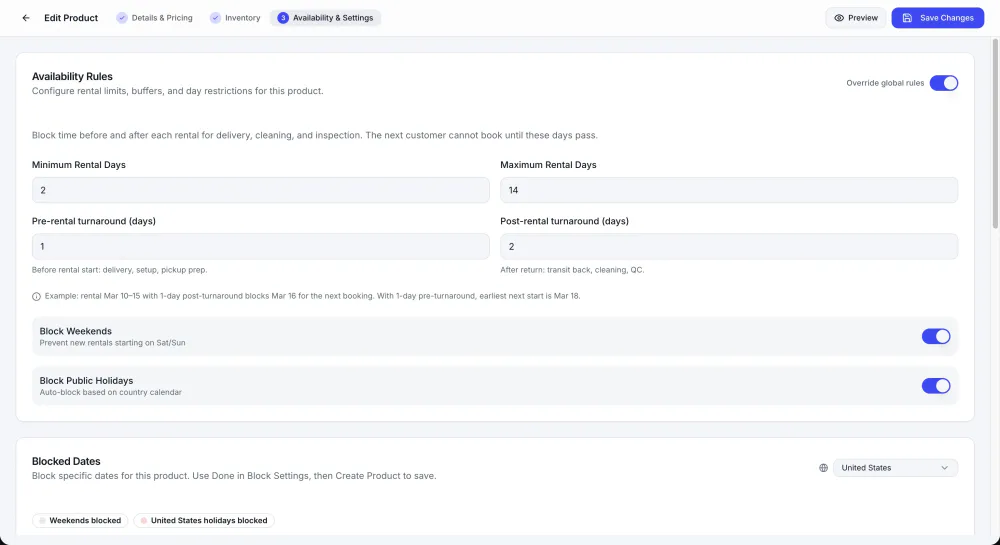
Product availability rules with 1 pre-rental turnaround day and 2 post-rental turnaround days

01See it in action

See rental buffer time in the admin

A short walkthrough in the Rental Suite admin, with voiceover. It plays muted; press Play with sound to hear it from the start.

Read the setup guide

02Overview

Rental buffer time in Rental Suite

Rental buffer time is the gap you keep around a booking so the item is ready for the next customer. Rental Suite calls it turnaround and counts it in whole days: pre-rental turnaround before the start for delivery or setup, and post-rental turnaround after the return for transit, cleaning and checks.

Turnaround days take up a unit just like rental days, so the next customer can't book through them. Set them for the whole shop, for a category or a tag, or for one product, and skip them on a single booking when you need to.

Turnaround time between rentals for the whole shop

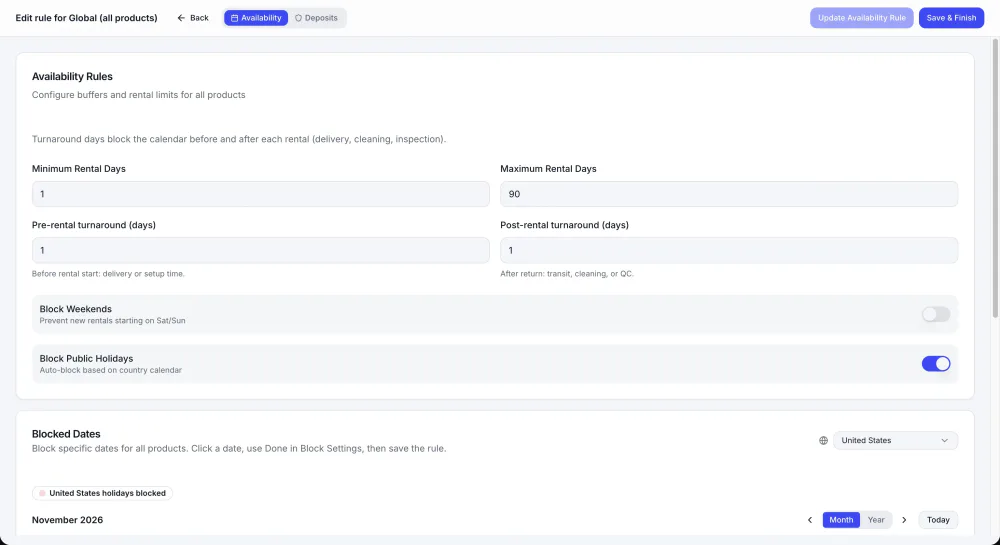
In Settings, Rental Rules, the global rule has Pre-rental turnaround (days) and Post-rental turnaround (days). New shops start with one day on each side. Set both to 0 if items go straight back out.

A category or tag rule can set different turnaround for a group, such as more cleaning time for linens than for tools.
Rental Suite
Global availability rule with 1 turnaround day before and 1 after each rental, used for delivery, cleaning and checks

Prep time between rentals for one product

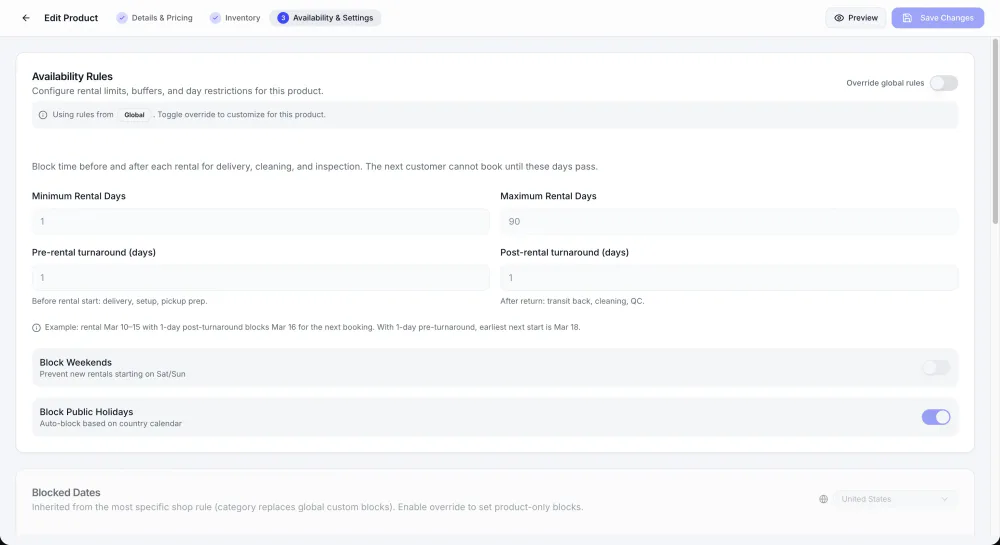
Some items need longer. On the product's Availability & Settings tab, switch on Override global rules and set its own turnaround.

The form gives an example as you type. With one day after a rental that ends on March 15, March 16 is held. If the product also has one day before each rental, the next booking of that unit can start on March 18 at the earliest.

Rental Suite
Product availability rules with the override switched off, showing the turnaround days taken from the shop-wide rule

Cleaning time between rentals shows on the calendar

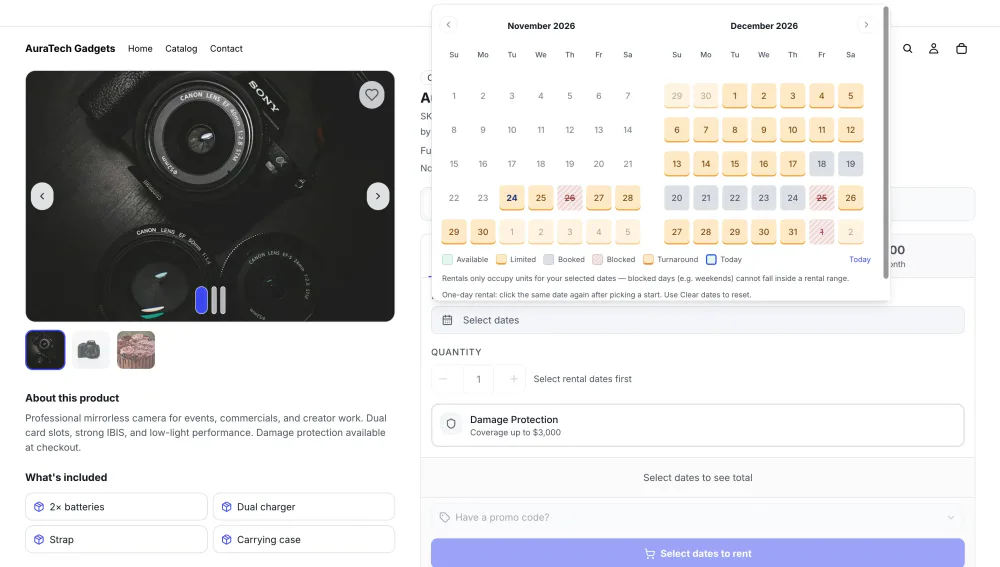
Turnaround days hold the units on that booking, so on a product with one unit they can't be booked by anyone else. In the date picker on your product page they're marked Turnaround, and New Booking in the admin counts them the same way.

Turnaround that would fall before today is ignored, so a rental can still start today.

Rental Suite
Rental date picker on a camera product page with booked and limited days and the legend that marks turnaround days

Skip the booking buffer time for one booking

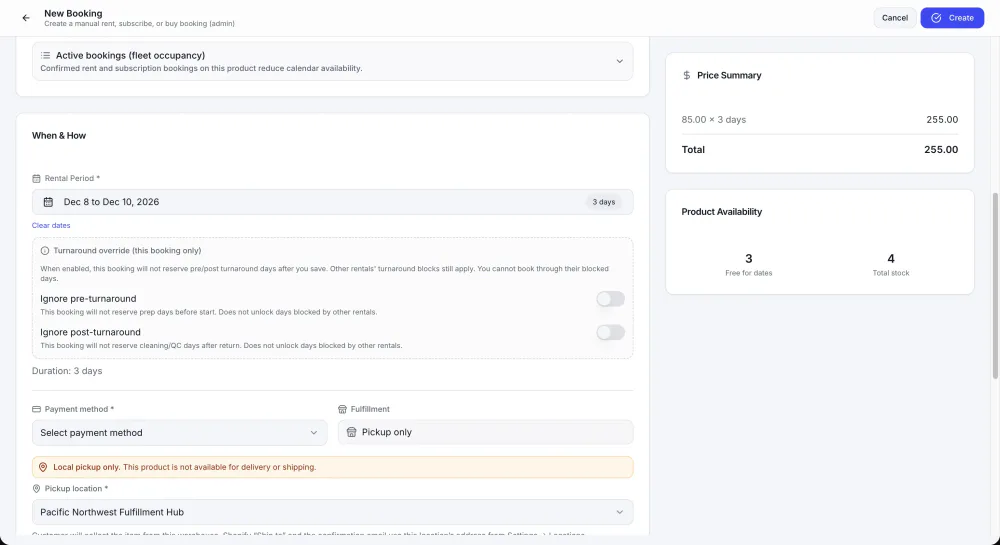
When a customer collects in person or you know the item needs no prep, open Turnaround override (this booking only) in New Booking and switch on Ignore pre-turnaround, Ignore post-turnaround or both. That booking then holds only its rental days.

It changes nothing else: other rentals' turnaround days still apply, and you can't book through them.

Rental Suite
New Booking form with the switches to ignore pre-turnaround and post-turnaround for this booking only

03How it works

Set up rental buffer time in 4 steps

The steps a merchant takes in the Rental Suite admin, in order.

Read the setup guide

  1. Set shop-wide turnaround

    In Settings, Rental Rules, enter pre-rental and post-rental turnaround days on the global rule and save.

  2. Adjust a group or a product

    Add a category or tag rule, or switch on Override global rules on a product, where turnaround needs to differ.

  3. Check the calendar

    Open the product page or New Booking and confirm turnaround days show around existing rentals.

  4. Skip it when you need to

    In New Booking, use the turnaround override to leave out the days before, after or both for one booking.

05Get started

Try rental buffer time on your store

Install Rental Suite, then turn on rental buffer time in the admin. The setup guide walks through each screen.

06FAQ

Rental buffer time questions

Answers to common questions about rental buffer time in Rental Suite.

Still have questions?

Ask the team that builds the app. We reply within one business day.

What is rental buffer time?

Rental buffer time is the time kept free before or after a rental so an item can be delivered, cleaned or checked. Rental Suite sets it as pre-rental and post-rental turnaround days, and nobody else can book the unit on those days.

Can I set turnaround in hours?

No. Turnaround is set in whole days, before and after each rental.

Does turnaround time between rentals block every unit?

No. It holds only the units on that booking. If you have four units and one is in turnaround, the other three can still be booked that day.

Can I skip turnaround for one booking?

Yes. In New Booking, the turnaround override lets you ignore the days before, after or both for that booking only.

Do customers see turnaround days?

Yes. The date picker on your product page marks them as Turnaround, so shoppers can see why a day next to another rental isn't free.