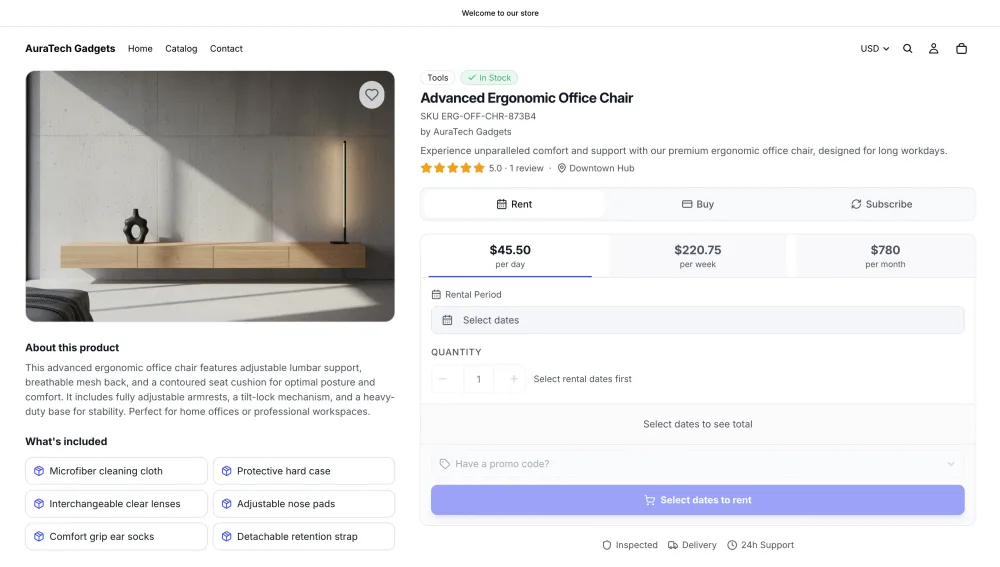
01 · Product
Turn on subscription pricing
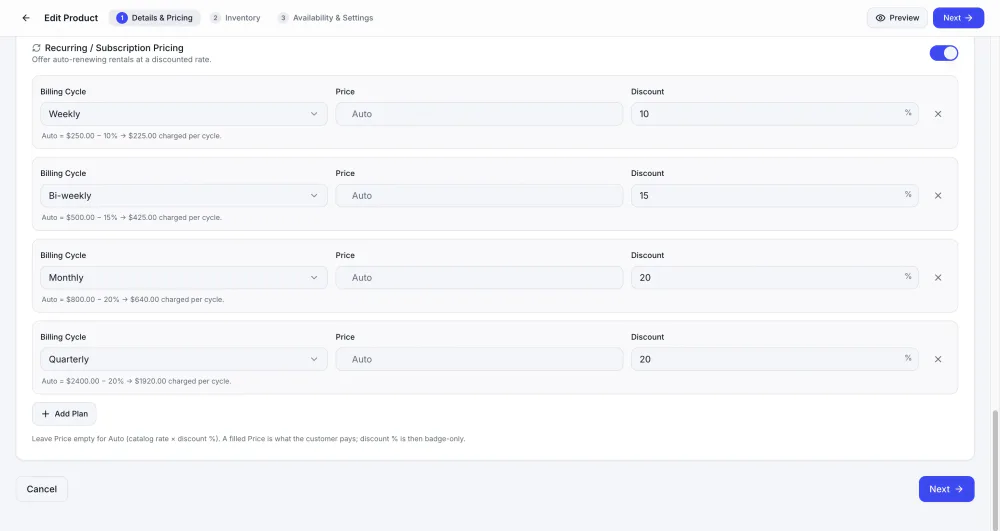
On Details & Pricing, switch on Recurring / Subscription Pricing and add a plan per billing cycle. Leave Price on Auto to charge your rental rate minus the plan discount, or set a fixed price.
Some customers rent the same item every week and rebook it each time. A rental subscription lets them pick a weekly, bi-weekly, monthly or quarterly plan on your product page instead: they pay the first cycle at checkout, later cycles bill through Shopify, and the unit stays reserved until they cancel and return it.
The Subscribe option is on Standard and up, with a 14-day free trial.
01See it in action
A short walkthrough in the Rental Suite admin, with voiceover. It plays muted; press Play with sound to hear it from the start.
02Subscribe mode
Each plan has a billing cycle and either a discount off your rental rates or a fixed price per cycle.
03Set up and sell
Add plans to the product, sell them on the product page or in New Booking, and follow every subscription in one tab.
On Details & Pricing, switch on Recurring / Subscription Pricing and add a plan per billing cycle. Leave Price on Auto to charge your rental rate minus the plan discount, or set a fixed price.
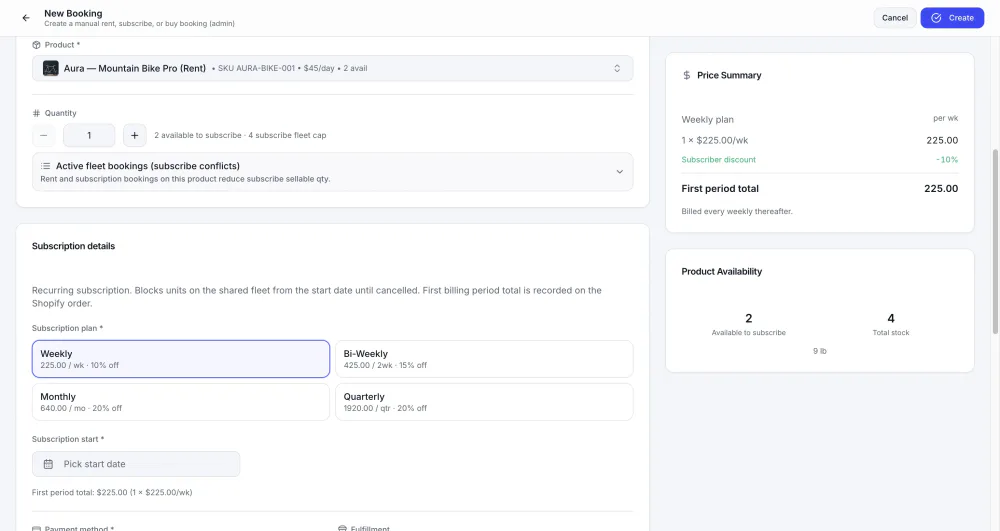
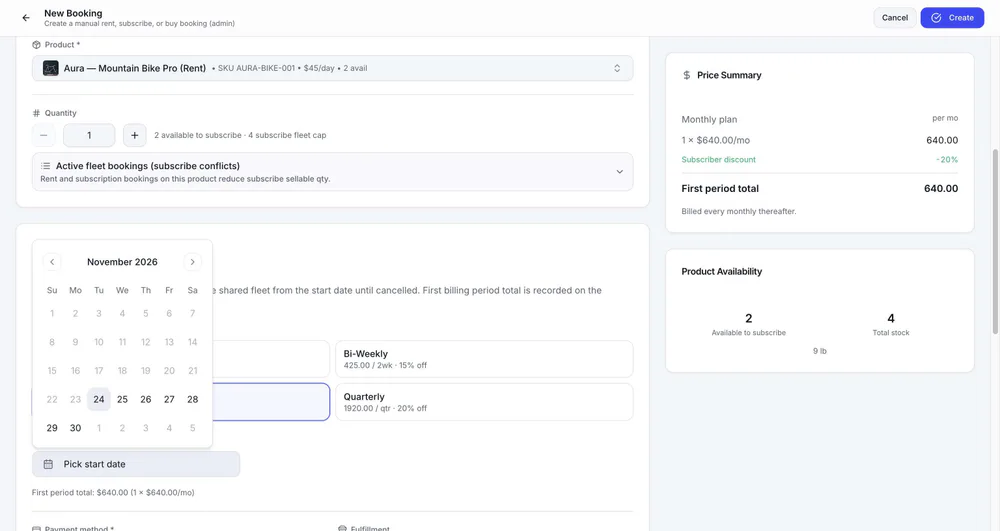
Choose Subscribe, then the customer, product and quantity, capped by the units free to subscribe. Pick a plan and a start date; the first period total goes on the Shopify order.
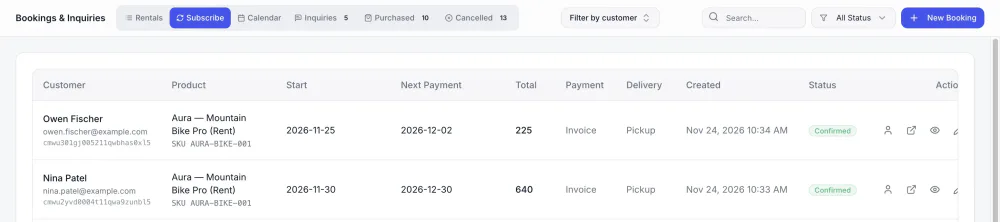
Bookings › Subscribe lists each subscription with its start date, next payment, total, payment, delivery and status.
04Subscribe tab
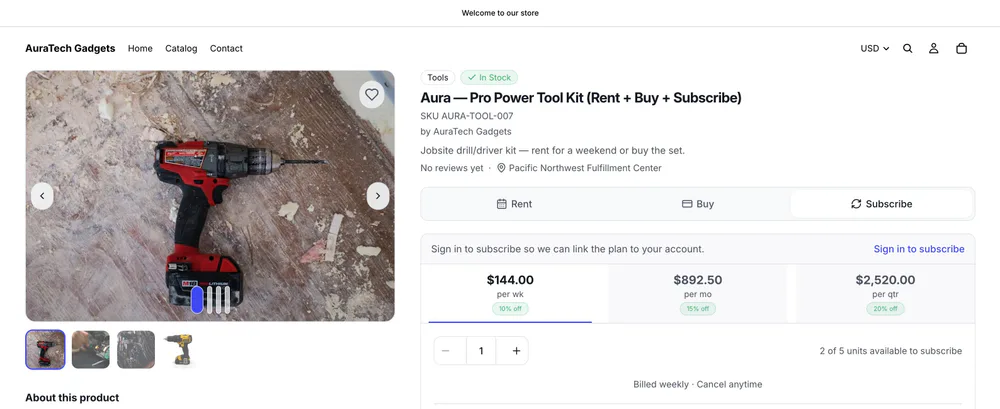
The Rental product page block adds a Subscribe tab with each plan and the units free to subscribe, using the same fleet cap as New Booking.
05Customer account
Shoppers sign in to subscribe, so every plan is linked to their account. Add the Rental subscriptions page to your customer accounts and a Subscriptions link to the account menu: subscribers see status, billing cycle, price per cycle and next billing, and can update their payment method or cancel. There's no pause or skip.
06Lifecycle
Subscriptions use the same statuses, customer emails and in-app alerts as rentals, and each cycle is charged through Shopify.
A shopper checks out on the Subscribe tab, or you create it in New Booking. From the start date, the units are reserved on the shared fleet.
Pickup, Delivery and Shipping work as they do for rentals, with the same emails. For subscriptions bought at checkout, Rental Suite charges each cycle through Shopify and Next Payment moves forward.
The subscription turns overdue and keeps its units. Shopify emails the customer a secure link to update their payment method, and once a charge goes through it's confirmed again.
Customers cancel from Subscriptions in their account or on the product page, and billing stops at once. If the gear is still out, the subscription shows Ending and keeps its units until it's back.
Once the booking shows Returned, the subscription closes and its units are free again for Rent, Buy and Subscribe.
Bookings → Subscribe lists every subscription with its start date, next payment and status.
07Features
Weekly to quarterly plans, priced on Auto from your rates or fixed per cycle.
Learn moreA Subscriptions page in the customer account to update payment or cancel.
Learn moreEach cycle charged through Shopify on its date, with failed payments flagged.
Learn more08Related
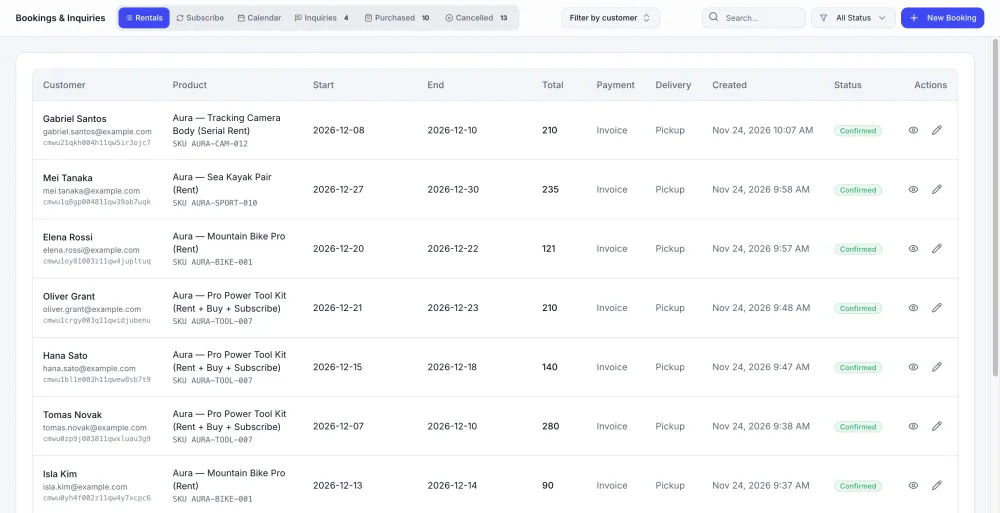
Bookings come in from your website, the phone and the counter, and a spreadsheet can't keep them apart. Rental Suite is rental reservation software that puts them on one calendar, checks every one against the same stock, and keeps the order, invoice and return status on each booking.
Learn more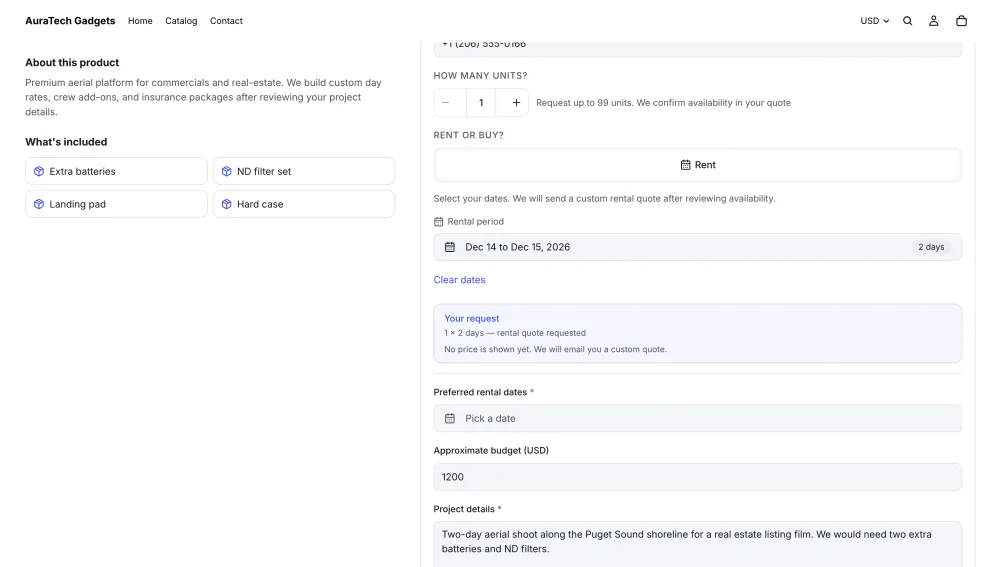
Big jobs and custom kits need a price from you, not a checkout. Rental Suite adds a quote request form to the product page, collects every request on one list, and turns an agreed quote into a booking at the rate you set.
Learn more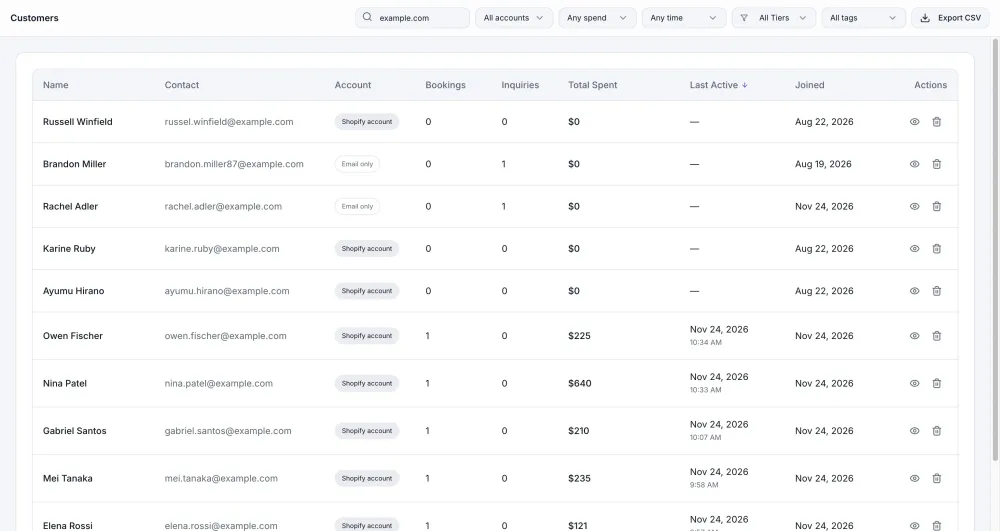
Order lists don't show who keeps coming back or which gear sits on the shelf. Rental Suite gives every renter one profile, and its dashboard turns the same bookings into rental analytics: repeat customers, lifetime value, revenue and utilization.
Learn more09FAQ
Common questions about rental subscriptions in Rental Suite.
Ask the team that builds the app. We reply within one business day.
A rental subscription lets a customer keep an item for as long as they pay a regular fee, instead of booking set dates. In Rental Suite the customer picks a weekly, bi-weekly, monthly or quarterly plan on your product page, and the unit stays reserved until they cancel and return it.
No, it's another mode on the same product. Rent books a date range; Subscribe holds units from the start date until the subscription ends, from the same shared fleet.
Weekly, bi-weekly, monthly and quarterly. Each plan takes a discount off your rental rate for that cycle, or a fixed price per cycle.
Yes, from the Subscriptions page in their customer account or on the product page while signed in. Billing stops at once, and if the gear is still out the subscription shows Ending until it's returned. There's no pause or skip.
In Rental Suite, Bookings › Subscribe lists them all. To sell one by phone or at the counter, use New Booking and choose Subscribe.
Standard, Growth and Enterprise. On the Free plan the Subscribe tab doesn't show and you can't turn Subscribe on for a product. Subscriptions customers already started keep renewing. Paid plans start with a 14-day free trial.