Email and notifications

SMTP email or Resend: send booking emails from your own domain

Renters trust an email from your store's address more than one from an app they don't recognise. Connect your own SMTP email server or a Resend account, and every booking email goes out with your From name and address.

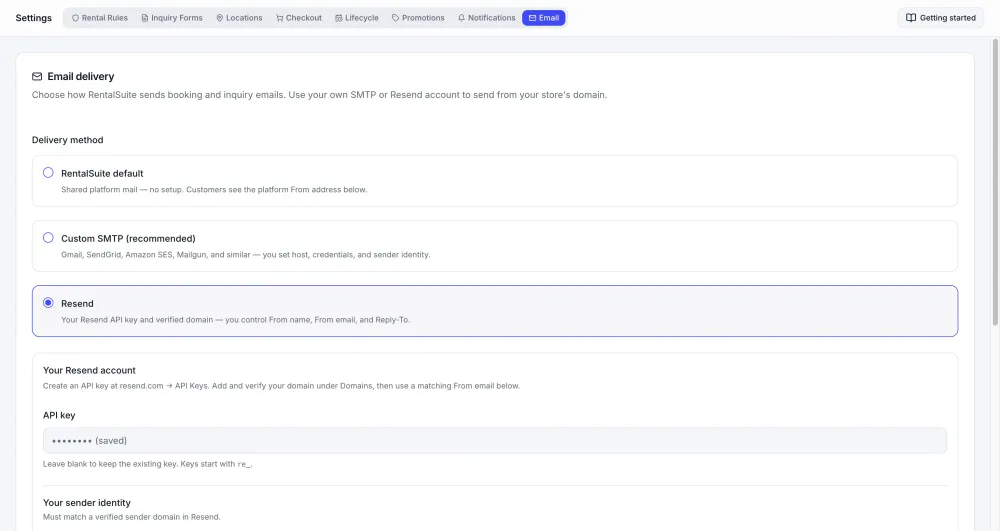
Settings, Email tab, with three delivery methods: RentalSuite default shared mail, Custom SMTP and Resend, with the Resend API key saved and masked

01See it in action

See send from your own domain in the admin

A short walkthrough in the Rental Suite admin, with voiceover. It plays muted; press Play with sound to hear it from the start.

Read the setup guide

02Overview

Send from your own domain in Rental Suite

Out of the box, Rental Suite sends your booking and inquiry emails through shared platform mail, so they work from the first booking with no setup. When you want them to come from your own address, switch the delivery method in Settings › Email to your own SMTP email server or a Resend account.

Either way you set the From name, From email and Reply-To your customers see. Every customer email Rental Suite sends then uses that method: confirmations, reminders, overdue notices and inquiry replies alike. The templates stay the same; only the sender changes.

Three ways to send

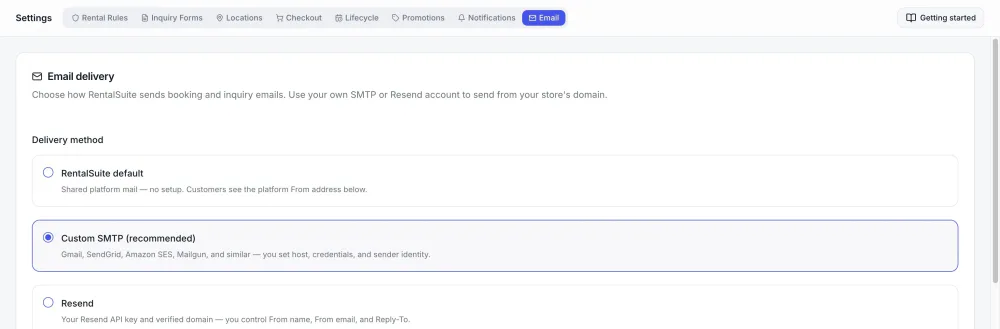
Settings › Email offers three delivery methods:

  • RentalSuite default: shared platform mail with no setup. Customers see the platform's From name and address; you can add your own Reply-To so their answers reach you.
  • Custom SMTP: any mail service that gives you SMTP details, such as Gmail, SendGrid, Amazon SES or Mailgun.
  • Resend: your own Resend account, connected with an API key.

Pick one, fill in its fields and click Save email settings. You can switch back to the default at any time, and your saved sender details stay for next time.
Rental Suite
Email delivery settings with three methods, RentalSuite default shared mail, Custom SMTP and Resend, with Custom SMTP selected

SMTP email settings for your mail server

For Custom SMTP you enter the server details your mail provider gives you: SMTP host, Port, Encryption (SSL, TLS or none), Username and Password, plus an option to turn on SMTP AutoTLS.

On Gmail, use smtp.gmail.com on port 465 with SSL, your full Gmail address as the username and a Google App Password rather than your normal password. Spaces pasted into an app password are removed when you save. If Gmail rejects the login, the test shows an error that says what to check.

Send emails from your own domain with Resend

For Resend, create an API key in your Resend account and paste it into API key; Resend keys start with re_. Your From email has to use a sending domain you've already verified in your Resend dashboard, because Resend won't send from a domain it hasn't checked.

Rental Suite doesn't look at your DNS or verify the domain for you. It hands each email to Resend with the sender you saved, so set up the domain in Resend first, then save here.

Your sender identity

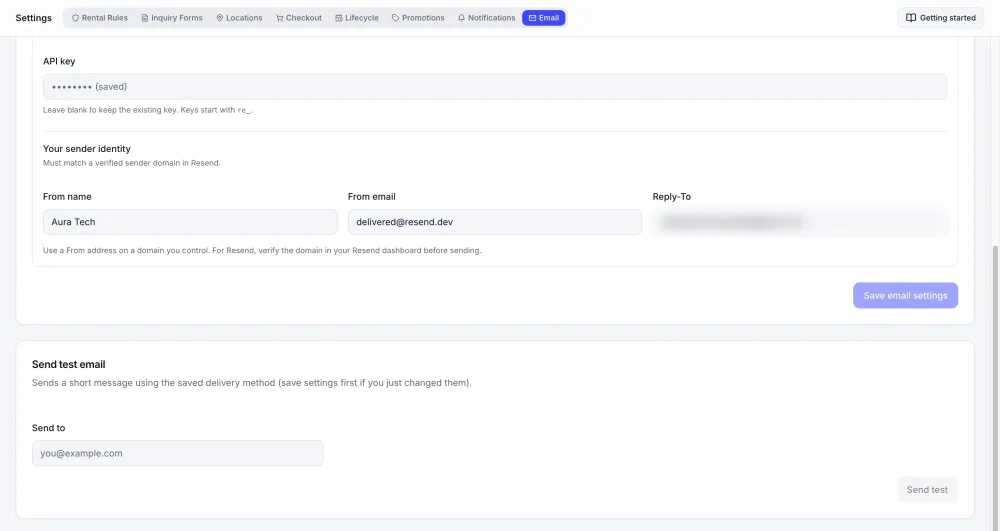
With SMTP or Resend, From name and From email are required, and Reply-To is optional. Use a From address on a domain you control, such as [email protected], and a Reply-To that someone reads, so a customer who hits reply reaches your team.

Passwords and API keys are stored encrypted. Once saved, the field shows as saved and you can leave it blank on later edits to keep the existing secret.

Rental Suite
Sender identity fields for From name, From email and Reply-To, with the Save email settings button and a Send test email box

Send a test before you rely on it

Send test email sends a short message to any inbox you type, using the saved delivery method. Save your settings first, then send the test and check it arrives.

This matters because Rental Suite doesn't fall back to platform mail when your own setup is incomplete or rejected: the email simply doesn't send. If a send fails for a passing reason, such as a timeout, Rental Suite tries it up to three times, and missed return reminders and overdue notices are tried again on later checks.

03How it works

Set up send from your own domain in 4 steps

The steps a merchant takes in the Rental Suite admin, in order.

Read the setup guide

  1. Open Settings › Email

    In Rental Suite, open Settings and the Email tab.

  2. Choose SMTP or Resend

    Pick Custom SMTP and enter your server details, or pick Resend and paste your API key.

  3. Set your sender identity

    Enter your From name, a From email on your own domain and, if you like, a Reply-To. Click Save email settings.

  4. Send a test email

    Type an inbox you can check, click Send test and confirm the message arrives.

05Get started

Try send from your own domain on your store

Install Rental Suite, then turn on send from your own domain in the admin. The setup guide walks through each screen.

06FAQ

Send from your own domain questions

Answers to common questions about send from your own domain in Rental Suite.

Still have questions?

Ask the team that builds the app. We reply within one business day.

What is SMTP email?

SMTP is the standard way one mail server hands an email to another. With SMTP details from your mail provider, Rental Suite can send your booking emails through your own account instead of shared platform mail.

Can I send rental emails from my own domain?

Yes. Choose Custom SMTP or Resend in Settings › Email and set a From email on your domain. Every booking and inquiry email Rental Suite sends then uses it.

Can I use Gmail as my SMTP server?

Yes. Use smtp.gmail.com, port 465 with SSL, your full Gmail address as the username and a Google App Password, which needs 2-Step Verification on your Google account.

Does Rental Suite verify my domain for Resend?

No. You verify your sending domain in your Resend dashboard. Rental Suite sends through your Resend account with the From address you save.

What if I don't set up SMTP or Resend?

Your emails still send, through shared platform mail with the platform's From address. You can add your own Reply-To so customer replies reach you.