Bookings and calendar

Manual bookings for phone and walk-in rentals, with live stock

When a regular calls to book the projector for Saturday, you need to know it's free before you say yes. New Booking in Rental Suite shows the units free for the dates, prices the rental and books it into the same stock as your website.

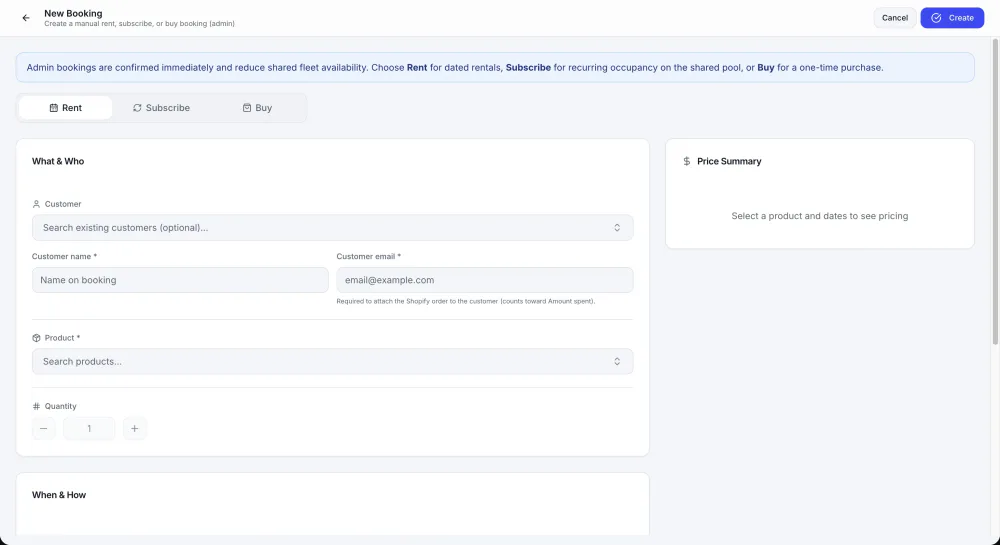
New Booking form in the admin with Rent, Subscribe and Buy tabs, customer and product fields and the price summary

01See it in action

See manual bookings in the admin

A short walkthrough in the Rental Suite admin, with voiceover. It plays muted; press Play with sound to hear it from the start.

Read the setup guide

02Overview

Manual bookings in Rental Suite

Manual bookings are the rentals your team adds by hand: a phone call, a customer at the counter, an order taken at an event. In Rental Suite they go through New Booking in the admin, a form for rent, subscribe or buy bookings.

The form uses the same availability calendar, rates and rules as your product pages. You see how many units are free for the dates, the price summary fills in as you go, and the booking can't take more units than you have.

When you click Create, the booking is confirmed, shows on your calendar and gets its own order in your Shopify admin, attached to the customer.

Phone booking rental software that checks stock first

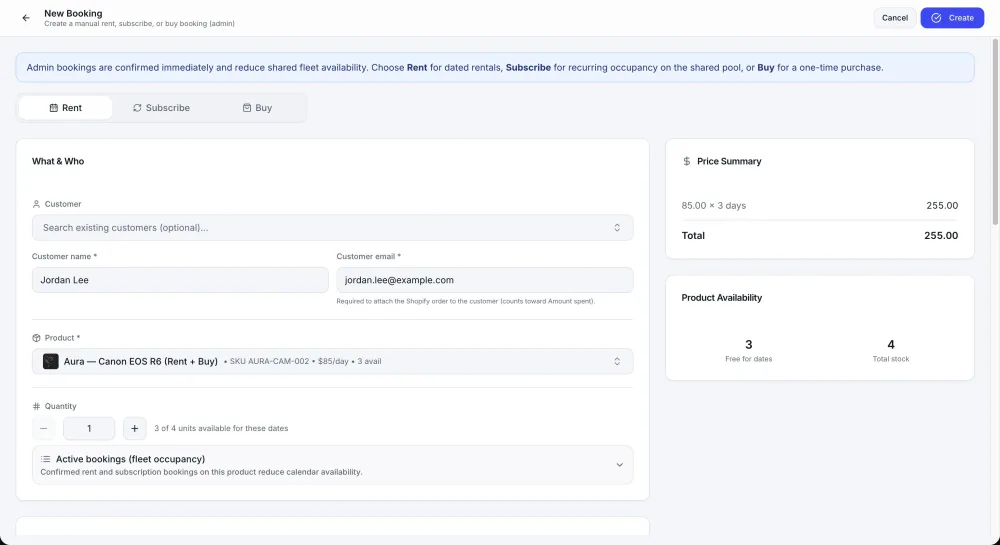
Pick Rent, then search for an existing customer or type a name and email. Choose the product and you'll see its SKU, daily rate and how many units are free.

Next to the form, Product Availability shows the units free for your dates against your total stock, and the quantity can't go higher than what's free. Active bookings lists the confirmed rentals and subscriptions already holding units of that product.

  • Rent for dated rentals, Subscribe for recurring plans, Buy for a sale
  • Customer search, or a new name and email
  • Units free for the dates next to total stock
Rental Suite
New Booking with the Rent tab selected, customer Jordan Lee, a camera at $85 a day and 3 of 4 units available for the dates

The same calendar as your website

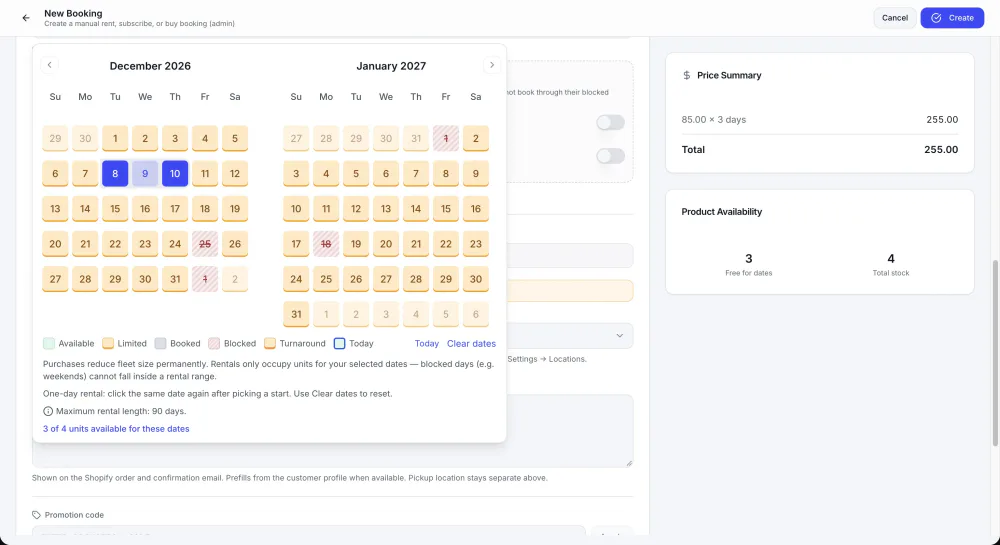
The Rental Period picker in the admin is the one shoppers see: available, limited, booked and blocked days, plus turnaround days around other rentals. Blocked days can't fall inside a range, and minimum and maximum lengths still apply.

Once you pick a range, the picker tells you how many units are left for those dates, so the answer you give on the phone is the one the stock will hold.

Rental Suite
Admin date picker on New Booking with December 8 to 10 selected, blocked holidays struck through and 3 of 4 units available

Turnaround, payment and pickup on one form

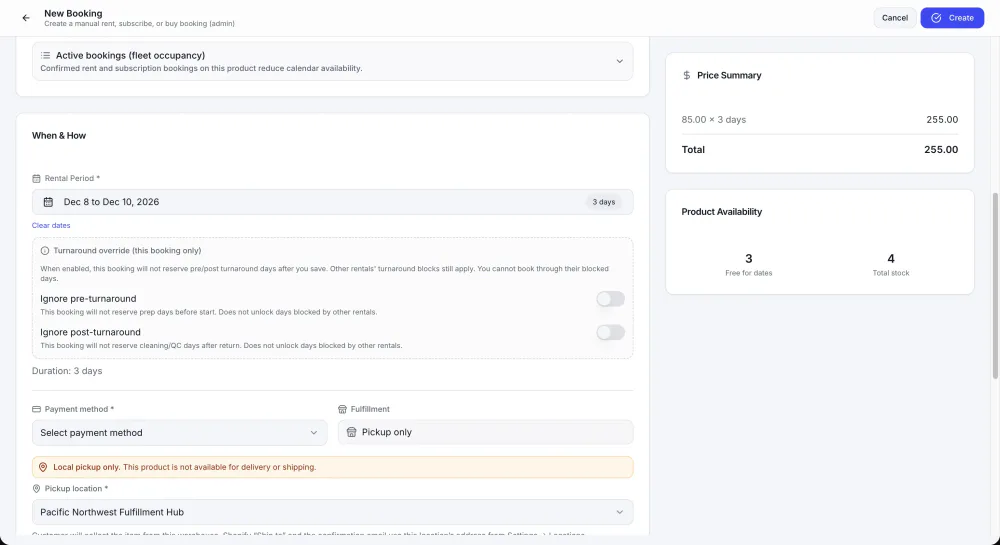
Under the dates, you can skip the prep or cleaning days for this one booking with Ignore pre-turnaround and Ignore post-turnaround. Other rentals' turnaround days still block the calendar.

Choose a payment method and how the gear reaches the customer. For pickup, pick the location: its address goes on the order and the confirmation email, and any pickup fee you set for that location is added to the total.

  • Payment: credit card, PayPal, invoice or cash
  • Fulfillment: pickup, delivery or shipping, per product
  • Pickup location and fee from Settings › Locations
Rental Suite
New Booking When and How card with the rental period, the turnaround override switches, payment method, pickup only fulfillment and the pickup location

Deposits, damage protection and promo codes

The Price Summary works like the product page: rate times days times units, then damage protection if you tick it and the product offers it, and the security deposit, which is refunded on return. Type a promotion code and it's checked against the same rules as your online checkout: active codes only, with their minimum order and usage limits.

The payment method you choose is recorded on the booking and its order. Invoice leaves the order's payment pending; the other methods mark it paid, so take the money before you click Create.

Walk-in rental bookings on your calendar and in your orders

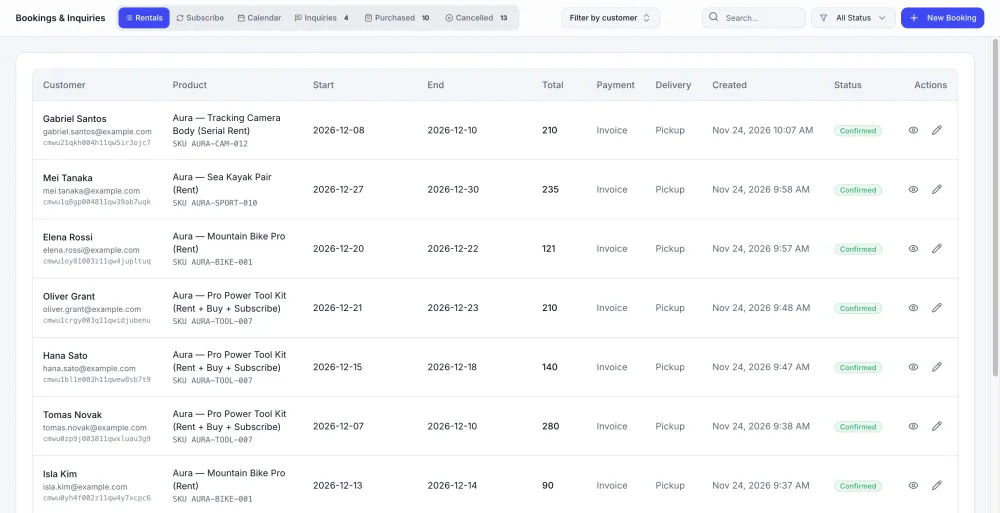
Create confirms the booking straight away. It appears on the Rentals tab and the calendar, takes its units for the dates, and creates an order in your Shopify admin attached to the customer, so the spend counts toward their history.

Need to change it later? Edit on the booking page lets you move the dates, and the price summary shows the extension charge or early return credit before you save.

Rental Suite
Rentals tab listing seven demo bookings with customer, product, dates, total, payment by invoice, pickup and Confirmed status

03How it works

Set up manual bookings in 5 steps

The steps a merchant takes in the Rental Suite admin, in order.

Read the setup guide

  1. Open New Booking

    In Bookings, click New Booking and choose Rent, Subscribe or Buy.

  2. Add the customer and product

    Search for the customer or type a name and email, then pick the product and quantity.

  3. Pick the dates

    Choose the rental period in the date picker and check the units free for those days.

  4. Set payment and fulfillment

    Choose the payment method, pickup, delivery or shipping, and the pickup location if needed.

  5. Create the booking

    Click Create. The booking is confirmed and shows on the calendar right away.

05Get started

Try manual bookings on your store

Install Rental Suite, then turn on manual bookings in the admin. The setup guide walks through each screen.

06FAQ

Manual bookings questions

Answers to common questions about manual bookings in Rental Suite.

Still have questions?

Ask the team that builds the app. We reply within one business day.

Can I add a rental booking manually?

Yes. New Booking in the Rental Suite admin creates rent, subscribe and buy bookings by hand, for phone calls, walk-ins and events.

Do manual bookings check availability?

Yes. New Booking uses the same stock and date rules as your product pages, and it won't book more units than are free for the dates.

Does a manual booking create an order?

Yes. Each one creates an order in your Shopify admin, attached to the customer by email, with the pickup or delivery details from the booking.

Can I take payment in New Booking?

No. You record how the customer paid. Invoice leaves the order's payment pending; credit card, PayPal and cash mark it paid, so collect the money first.

Can I skip turnaround days for one booking?

Yes. Turn on Ignore pre-turnaround or Ignore post-turnaround on that booking. Other rentals' turnaround days still apply.