Inquiries and quotes

Quote to booking: convert a request at the rate you agreed

Once the customer says yes, the quote has to become a real booking before someone else takes the dates. Rental Suite opens the request as a booking form with the customer and product filled in, so you add your rate and create it.

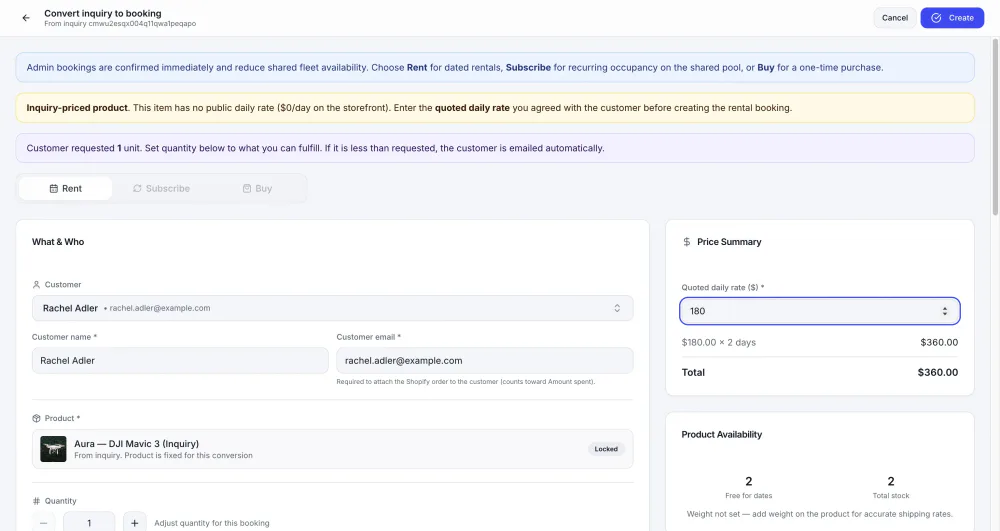
Convert inquiry to booking form with the customer and locked drone product from the request and a 180 dollar quoted daily rate giving a 360 dollar total

01See it in action

See quote to booking in the admin

A short walkthrough in the Rental Suite admin, with voiceover. It plays muted; press Play with sound to hear it from the start.

Read the setup guide

02Overview

Quote to booking in Rental Suite

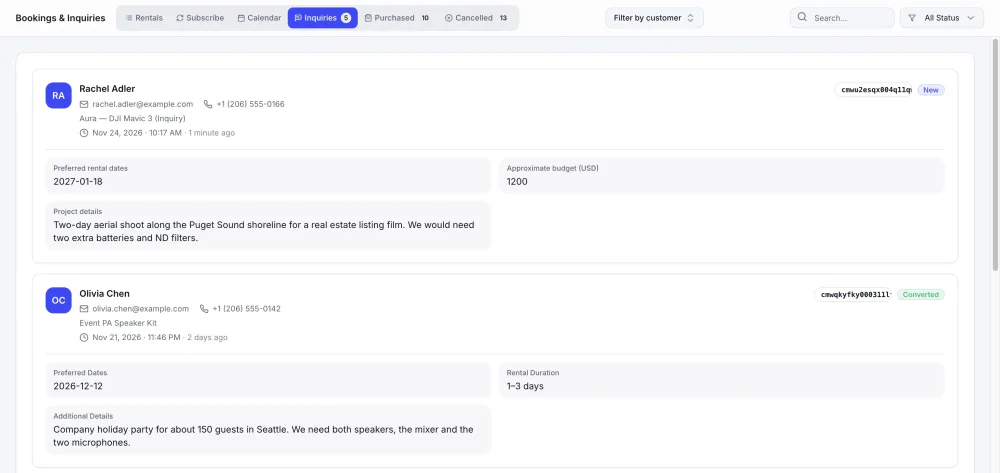
Quote to booking is the last step of a quote request: you've agreed a price and dates, and now the gear needs to be booked. In Rental Suite you don't retype anything. Create booking on the request opens Convert inquiry to booking, the New Booking form filled in from the request.

You enter the daily rate you quoted, check the units and dates, choose payment and fulfillment, and click Create. The booking is confirmed straight away and takes its units from the same stock as your other rentals.

The request then shows Converted and links to its booking, so you can always trace a booking back to the quote.

Reply first, then convert

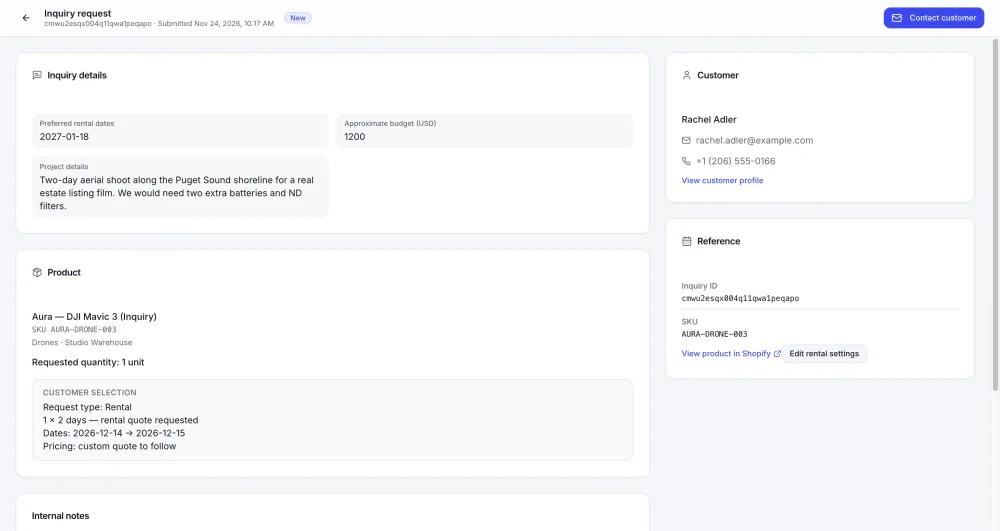
A new request starts as New. Contact customer opens a Gmail draft addressed to the shopper and marks the request Contacted, so your team knows someone has replied.

Agree the rate, dates and units by email. Once the request is Contacted, the Create booking button appears in its place.
Rental Suite
Inquiry request with the New status, the Contact customer button, the shopper's preferred dates, budget, project details and requested quantity

Convert a quote to a booking without retyping it

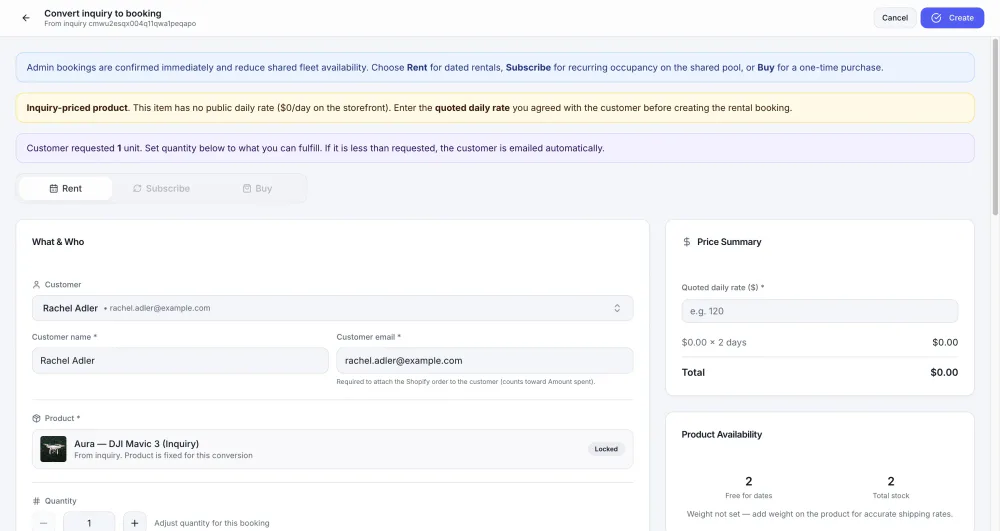
The convert form opens with the customer's name, email and phone, the requested units, dates and notes from the request. The product is locked, and the booking type follows what the shopper asked for.

For a product with no public rate, a note asks for the Quoted daily rate, and the price summary multiplies it by the days. If the product has rates and the shopper picked dates, those are filled in for you to adjust.

  • Customer, units, dates and notes from the request
  • Product locked to the one they asked about
  • Quoted daily rate times the rental days
Rental Suite
Convert inquiry to booking form with the note to enter the quoted daily rate, the customer from the request, the locked drone product and the requested quantity

Book fewer units than they asked for

If you can only supply part of the request, lower the quantity. The form shows how many fewer units you're booking, and when you create the booking the customer gets the Inquiry Quantity Adjusted email so they hear it from you, not at pickup.

When you click Create, the booking is checked against live stock for the dates, the same as any booking in New Booking.

Rental quote to booking: dates, fulfillment and promo codes

The rest of the form is New Booking as usual. Pick the rental period, tick damage protection if the product offers it, choose the payment method, and pick pickup, delivery or shipping. For pickup, choose the location; its pickup fee is added to the total.

A promotion code works with the same rules as your online checkout: active codes only, with their minimum order and usage limits.

  • Rental period, damage protection and payment method
  • Pickup, delivery or shipping, with the pickup fee added
  • Promo codes with checkout rules

03How it works

Set up quote to booking in 5 steps

The steps a merchant takes in the Rental Suite admin, in order.

Read the setup guide

  1. Open the request

    In Bookings › Inquiries, open the request you've been asked to quote.

  2. Contact the customer

    Click Contact customer and agree the rate, dates and units by email. The request moves to Contacted.

  3. Click Create booking

    Convert inquiry to booking opens with the request filled in.

  4. Add your rate and details

    Enter the quoted daily rate, check units and dates, and choose payment and fulfillment.

  5. Create the booking

    Click Create. The booking is confirmed and the request shows Converted.

05Get started

Try quote to booking on your store

Install Rental Suite, then turn on quote to booking in the admin. The setup guide walks through each screen.

06FAQ

Quote to booking questions

Answers to common questions about quote to booking in Rental Suite.

Still have questions?

Ask the team that builds the app. We reply within one business day.

How do I convert a quote to a booking?

Open the request, contact the customer, then click Create booking. Enter the quoted daily rate, check the dates and units, choose payment and fulfillment, and click Create.

Why can't I see Create booking on a request?

It appears once the request is Contacted. Click Contact customer first; it opens a Gmail draft and moves the request to Contacted.

What price does the converted booking use?

The quoted daily rate you enter, times the rental days and units. Damage protection, a deposit, a pickup fee or a promo code are added on top as on any booking.

Can I book fewer units than the customer asked for?

Yes. Lower the quantity before you create the booking, and the customer is emailed that the quantity changed.

Is the converted booking confirmed right away?

Yes. Admin bookings are confirmed when you click Create and take their units from your stock for those dates.