Bookings and calendar

Equipment check in and check out software for rental returns

Gear that goes out has to come back, on time and in one piece. Rental Suite reads the handoff from your orders, lets you mark the return on the booking and flags late rentals on your calendar.

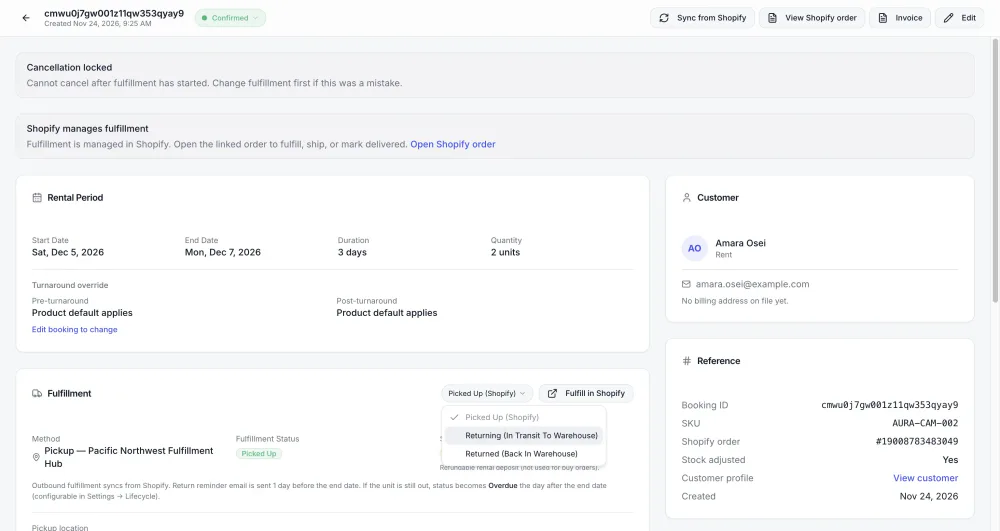
Booking page with the Fulfillment menu open: Picked Up from Shopify, then Returning (in transit to warehouse) and Returned (back in warehouse)

01See it in action

See return tracking in the admin

A short walkthrough in the Rental Suite admin, with voiceover. It plays muted; press Play with sound to hear it from the start.

Read the setup guide

02Overview

Return tracking in Rental Suite

Equipment check in and check out is the part of renting that happens off the website: the handoff, the days the gear is out, and the return. Rental Suite follows each booking through those stages so you don't need a separate sign-out sheet.

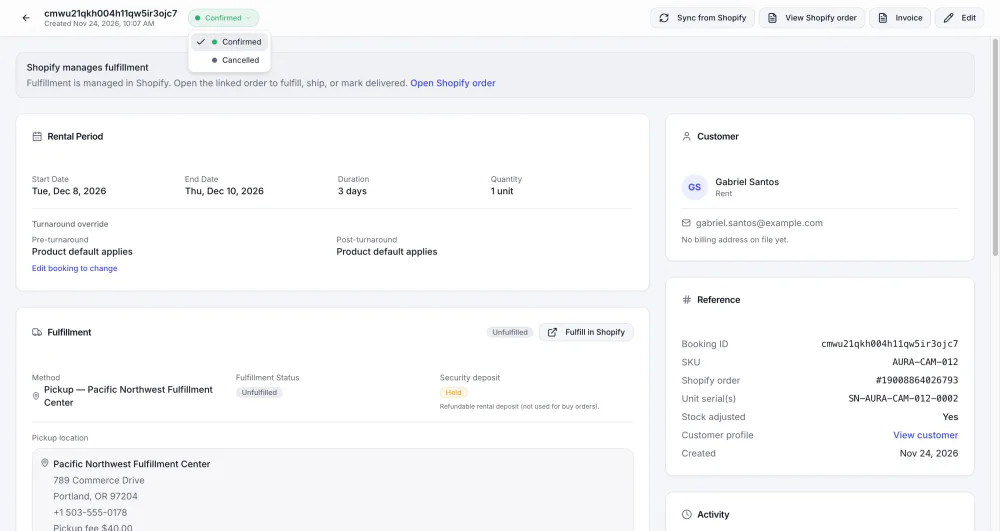
Check out happens on the order in your Shopify admin, where you mark it ready for pickup, picked up, shipped or delivered; Rental Suite reads that status back onto the booking. Check in happens in Rental Suite: the booking's Fulfillment menu then offers Returning and Returned.

Before the end date the customer gets a reminder, after it the booking turns overdue if the gear is still out, and once you mark it Returned the units are free again and the deposit is refunded.

Check out: the handoff is marked on the order

Every booking has an order in your Shopify admin, and that's where you mark the handoff: ready for pickup, picked up, shipped or delivered. The booking page says so at the top and has a Fulfill in Shopify button that opens the order.

Rental Suite picks the status up on its own when the order changes. Sync from Shopify on the booking page pulls the latest payment, delivery and fulfillment straight away.

  • Pickup: Ready for Pickup, then Picked Up
  • Delivery or shipping: Shipped, In Transit, Delivered
  • Both are marked on the Shopify order
Rental Suite
Booking page with Confirmed and Cancelled in the status menu, the note that fulfillment is managed in Shopify, an Unfulfilled pickup with its location and the deposit held

Check in: mark it Returning, then Returned

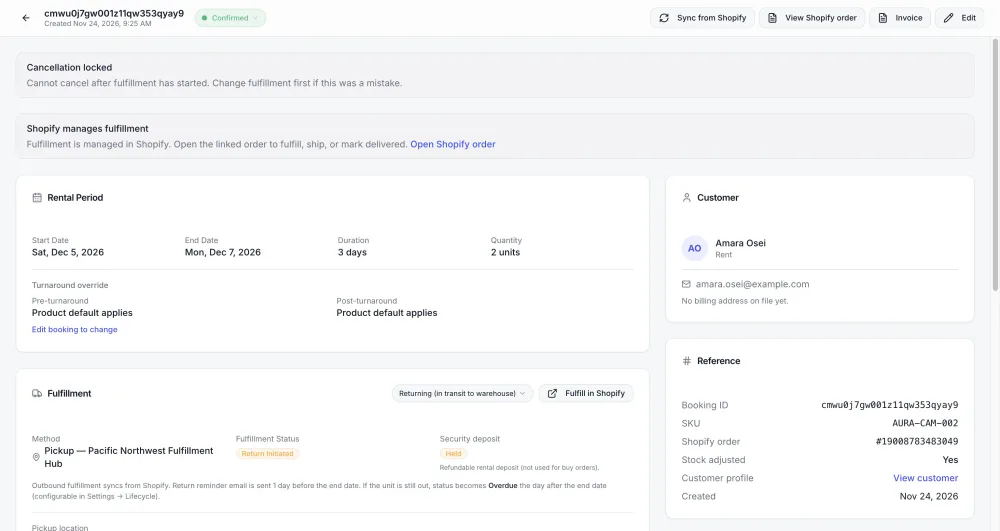
The return is the part you mark in Rental Suite. Once the order shows Picked Up or Delivered, the booking's Fulfillment menu offers two more steps: Returning (in transit to warehouse) for gear on its way back, and Returned (back in warehouse) when it's on your shelf.

Use Returning when a courier is bringing it back or it's waiting to be checked. Pick Returned once you've checked it, and the booking closes.

Rental Suite
Booking page with the fulfillment set to Returning (in transit to warehouse) after the pickup was marked in Shopify

Rental return tracking on one calendar

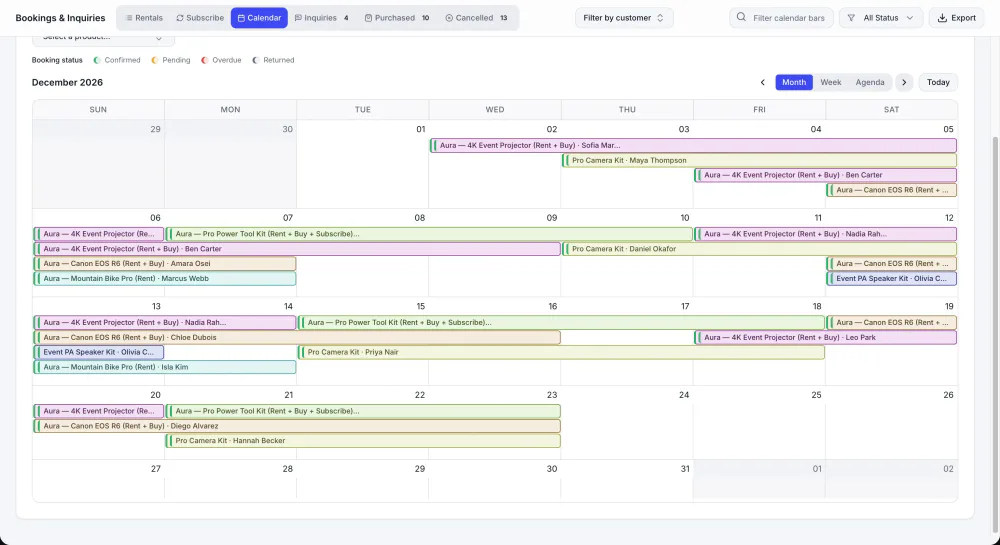
The bookings calendar colours each booking by status: Confirmed, Pending, Overdue and Returned. Filter by status or customer to see what's out this week, what's due back and what's late, without opening each booking.

On each booking, the Fulfillment card shows the method, the current status and the pickup location, so anyone on your team can answer "has it come back yet?"

Rental Suite
Bookings calendar for December 2026 with rental bars for projectors, cameras, power tools and bikes and the booking status legend above it

Return reminders and overdue rentals

In Settings › Lifecycle you choose how many days before the end date the reminder goes out (one by default). The customer gets the Return Reminder email and your team gets a Return due alert in the app's notification feed.

A rental turns Overdue when it has been picked up or delivered and isn't marked returned after the end date plus your grace days (zero by default). The customer gets an overdue notice, your team gets an alert, and the booking keeps its units until it's back, so nobody books gear that's still out. Both emails are templates you can edit or switch off in Email Templates.

  • Reminder days before the end date, one by default
  • Grace days after the end date, zero by default
  • Overdue rentals keep their units until returned

What marking a rental Returned does

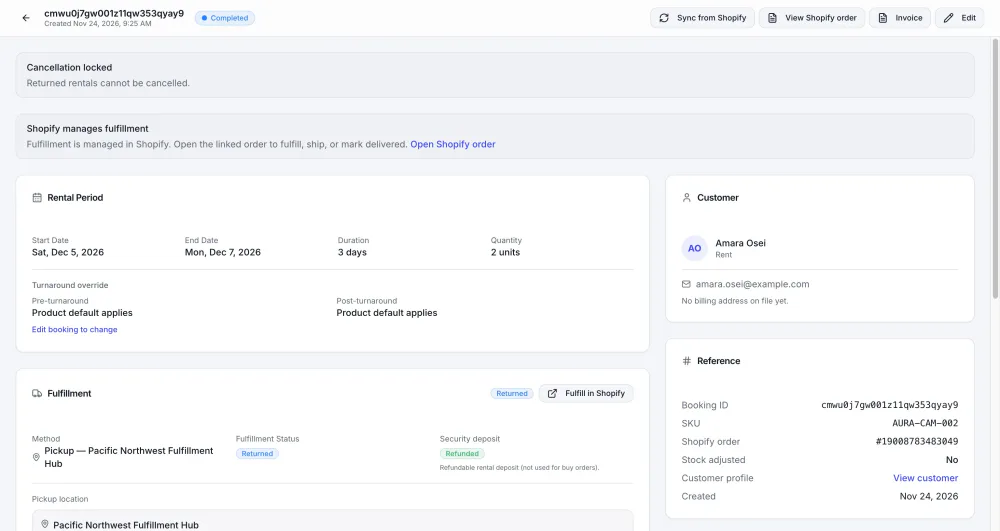
When you pick Returned, the booking shows Completed and its units go back into stock for the next booking. Any serial unit assigned to it is released, a security deposit held on the booking is refunded, the customer gets the Rental complete email and your team gets a Return completed alert.

A returned rental can't be cancelled or moved back to an earlier step, so the record stays as it happened.

  • Units free for the next booking
  • Serial unit released
  • Held deposit refunded
  • Customer email and team alert
Rental Suite
Returned camera booking with the Completed status, the note that returned rentals can't be cancelled and the security deposit marked Refunded

Rental return management with a record of every step

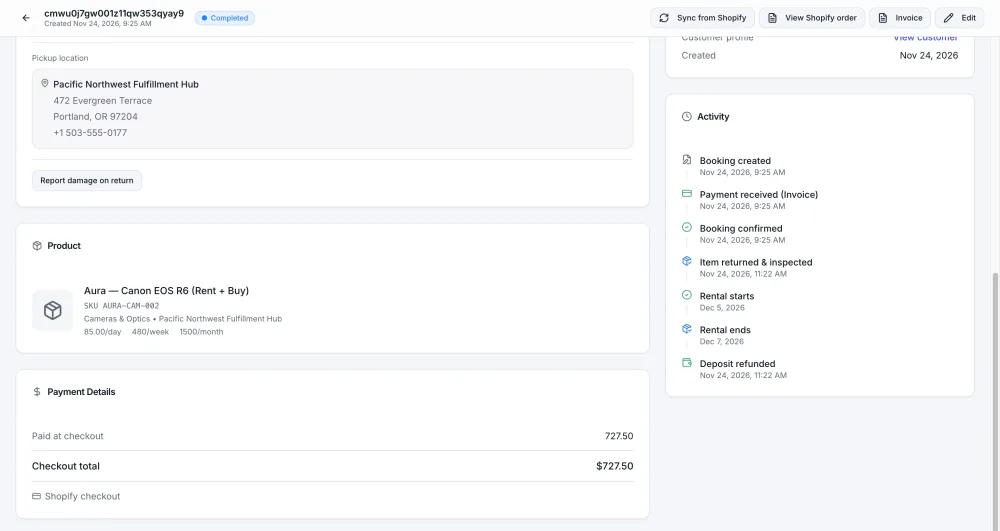
The booking's Activity timeline adds the return and the deposit refund to the booking's history.

If something came back broken, Report damage on return on the booking page sends the customer your damage report email. That template is off until you turn it on in Email Templates, and reporting damage doesn't change the deposit.

Rental Suite
Booking activity timeline with Item returned and inspected and Deposit refunded entries, beside the Report damage on return button

03How it works

Set up return tracking in 5 steps

The steps a merchant takes in the Rental Suite admin, in order.

Read the setup guide

  1. Set your reminder days

    In Settings › Lifecycle, choose how many days before the end date to remind customers and how many grace days to allow.

  2. Mark the handoff on the order

    When the customer collects or the gear ships, fulfill the order in your Shopify admin. The booking shows the new status.

  3. Watch what's due back

    Return due and overdue alerts appear in the notification feed, and the calendar shows late rentals in their own colour.

  4. Mark the return

    When the gear is on its way back, set Fulfillment to Returning. Once it's back and checked, set it to Returned.

  5. Report damage if needed

    If something came back broken, use Report damage on return to send the customer your damage report email.

05Get started

Try return tracking on your store

Install Rental Suite, then turn on return tracking in the admin. The setup guide walks through each screen.

06FAQ

Return tracking questions

Answers to common questions about return tracking in Rental Suite.

Still have questions?

Ask the team that builds the app. We reply within one business day.

What is equipment check in and check out software?

It records when rented gear leaves and when it comes back, so you know what's out and what's late. In Rental Suite the handoff comes from your orders and you mark the return on the booking.

How do I know a rental is overdue?

Rental Suite marks a booking Overdue when the gear is out after the end date plus your grace days. You get an in-app alert, the customer gets a notice and the calendar shows it.

Can I change the reminder and overdue emails?

Yes. Both are templates in Email Templates: edit the subject and wording, or switch either one off.

How do I mark a rental as returned?

Open the booking in Rental Suite. After the order shows Picked Up or Delivered, the Fulfillment menu offers Returning and Returned; pick Returned once the gear is back.

Is the security deposit refunded on return?

Yes. When you mark the rental Returned, a deposit held on the booking is refunded in full and the refund shows in the booking's activity.

Can I see which unit a customer has?

Yes. For products with serial tracking, the booking shows the assigned serial number, and the unit is released when you mark the rental Returned.